Use Lighthouse Thresholds
A threshold is the minimum score that a Lighthouse report category must reach. A tolerance is the number of points a score can fall below its threshold and still pass. Tugboat compares each report to its thresholds and sets a “Pass” or “Fail” status on the report. That status displays in the Tugboat Dashboard, and it reports to the linked git provider, for example GitHub.
Lighthouse scores can vary between runs of the same page, even when the page doesn’t change. Performance scores vary the
most, because Tugboat runs Lighthouse on shared infrastructure. With a tolerance of zero, a small variation can fail a
report. For example, with a threshold of base, a performance score of 89 fails when the Base Preview scored 90. A
tolerance of a few points lets those small variations pass, and still fails a report whose score drops further.
Tugboat Tier
This feature is available for Tugboat Premium plans.
You may want to do a few things with Lighthouse thresholds:
- Compare reports to the Base Preview
- Set thresholds in
config.yml - Set thresholds with the CLI
- View pass/fail results in a linked git repository
- View pass/fail results in the Tugboat Dashboard
- Approve or reject Lighthouse reports
- Regenerate reports by status
Compare reports to the Base Preview
When a Preview is built from a Base Preview, Tugboat uses the scores of
the matching report in the Base Preview as the thresholds for each report that doesn’t have thresholds in your
config.yml, with a tolerance of zero. A matching report has the same Service, URL,
alias, and screen. If the Base Preview doesn’t have a matching report, Tugboat generates one first.
To use this comparison, configure Lighthouse and set a Base Preview.
Set thresholds in config.yml
To set thresholds for the reports generated from the urls in your config.yml, add a threshold key to a
lighthouse block. A threshold in the Service-level lighthouse
block applies to every URL of the Service. A threshold in the lighthouse block of a single
URL applies to that URL.
A threshold is a score from 0 to 100, or base to use the score of the matching report in the Base Preview, as
described in Compare reports to the Base Preview. The categories are
performance, accessibility, best-practices, and seo.
To use the same threshold for every category, set threshold to a number:
1services:
2  apache:
3    lighthouse:
4      threshold: 90
5    urls:
6      - /
7      - /blog
To set a tolerance, set threshold to an object with threshold and tolerance keys. The threshold key defaults to
base, and the tolerance key defaults to zero:
1services:
2  apache:
3    lighthouse:
4      threshold:
5        threshold: 90
6        tolerance: 5
7    urls:
8      - /
Info
Put tolerance inside the threshold object. Tugboat ignores a tolerance key at the same level
as threshold.
To set a threshold for individual categories, set threshold to a list. Tugboat doesn’t check categories that you leave
out. Each item is a category name, which compares that category to the Base Preview, or an object with a category key
and optional threshold and tolerance keys:
 1services:
 2  apache:
 3    lighthouse:
 4      threshold:
 5        # Performance must score at least 85, with a tolerance of 3 points
 6        - category: performance
 7          threshold: 85
 8          tolerance: 3
 9        # Accessibility must score at least 95
10        - category: accessibility
11          threshold: 95
12        # SEO compares to the Base Preview
13        - seo
14    urls:
15      - /
Set thresholds for each screen
A number, base, object, or list applies to both the desktop and mobile screens. To set each screen separately, use
desktop and mobile keys. Each key accepts any of the forms above. When threshold has a desktop or mobile key,
it can’t have any other keys. On a Service, a screen that you leave out compares every category to the Base Preview. On
a URL, a screen that you leave out keeps the Service-level threshold, as described in
Override Service thresholds for a URL.
 1services:
 2  apache:
 3    lighthouse:
 4      screen:
 5        - desktop
 6        - mobile
 7      threshold:
 8        desktop:
 9          threshold: 90
10          tolerance: 2
11        mobile: base
12    urls:
13      - /
Tugboat generates reports only for the screens in the screen list, which defaults to desktop. A threshold for a
screen that isn’t in the list has no effect.
Override Service thresholds for a URL
A threshold on a URL overrides the Service-level threshold only for the screens that it sets. The other screens keep
the Service-level threshold.
 1services:
 2  apache:
 3    lighthouse:
 4      screen:
 5        - desktop
 6        - mobile
 7      threshold: 90
 8    urls:
 9      # Desktop and mobile use the Service threshold of 90
10      - /
11      # Desktop and mobile compare to the Base Preview
12      - url: /blog
13        lighthouse:
14          threshold: base
15      # Desktop compares to the Base Preview, and mobile keeps the Service threshold of 90
16      - url: /about
17        lighthouse:
18          threshold:
19            desktop: base
Invalid thresholds
When a threshold is invalid, the Preview fails to build with error 1056, Invalid Preview configuration. For more
information, see Tugboat Error Codes. These values are invalid:
- A score or tolerance outside 0 to 100
- An unknown category name
- An empty list, or a list item without a category
- A
desktopormobilekey next to any other key, such astabletorthreshold
Set thresholds with the CLI
Use the Tugboat CLI to set thresholds on a single report. A threshold is a score from 0 to 100, or
base to use the score of a base report. The categories are performance, accessibility, best-practices, and
seo.
The default tolerance is zero.
Info
Thresholds that you set with the CLI last until the Preview builds, rebuilds, or refreshes. When it
does, Tugboat sets the reports generated from the urls in your config.yml back to the thresholds in your
config.yml, and deletes any other reports you created with
tugboat create lighthouse. A report without a threshold in your config.yml goes back to comparing against the Base
Preview, with a tolerance of zero.
By default, Tugboat compares a report you create with the CLI to the matching report in the Base Preview, as described
in Compare reports to the Base Preview. To create a report with the default
comparison, where [service_id] is the ID of a Service:
1tugboat create lighthouse [service_id]The report uses the URL / unless you pass url. If a report already exists for that URL and screen, for example one
generated from the urls in your config.yml, Tugboat updates that report instead of creating a new one.
To compare against a specific report instead of the matching Base Preview report, pass its ID as base:
1tugboat create lighthouse [service_id] base=[base_report_id]To use a fixed score instead of a base report, set threshold to a number. For example, to create a report with a
threshold of 85 for every category:
1tugboat create lighthouse [service_id] threshold=85To set a threshold for individual categories, specify each category you want to check. Tugboat doesn’t check categories
that you leave out. Each category accepts a number or base:
1tugboat create lighthouse [service_id] threshold.performance=85 threshold.seo=base tolerance.seo=3To change the thresholds of an existing report, use tugboat update:
1tugboat update [lighthouse_id] threshold=91 tolerance=2To view the scores of a report, and the thresholds, tolerances, and approval status of a report that has a base report:
1tugboat ls [lighthouse_id] --verboseFor a report without a base report, such as one with a fixed threshold, use --json to see its thresholds:
1tugboat ls [lighthouse_id] --jsonView pass/fail results in a linked git repository
When the Set Pull Request status setting is on for the
git provider, Tugboat reports a Tugboat - Lighthouse Reports status
on pull requests and merge requests. The status shows as a “Pass” when every report in the Preview meets one of these
conditions:
- The report meets its thresholds, within its tolerance.
- The report has no thresholds.
- You approved the report.
The status shows as a “Fail” when any report doesn’t meet its thresholds and isn’t approved, or when you reject it. The status shows as running while Tugboat generates reports.
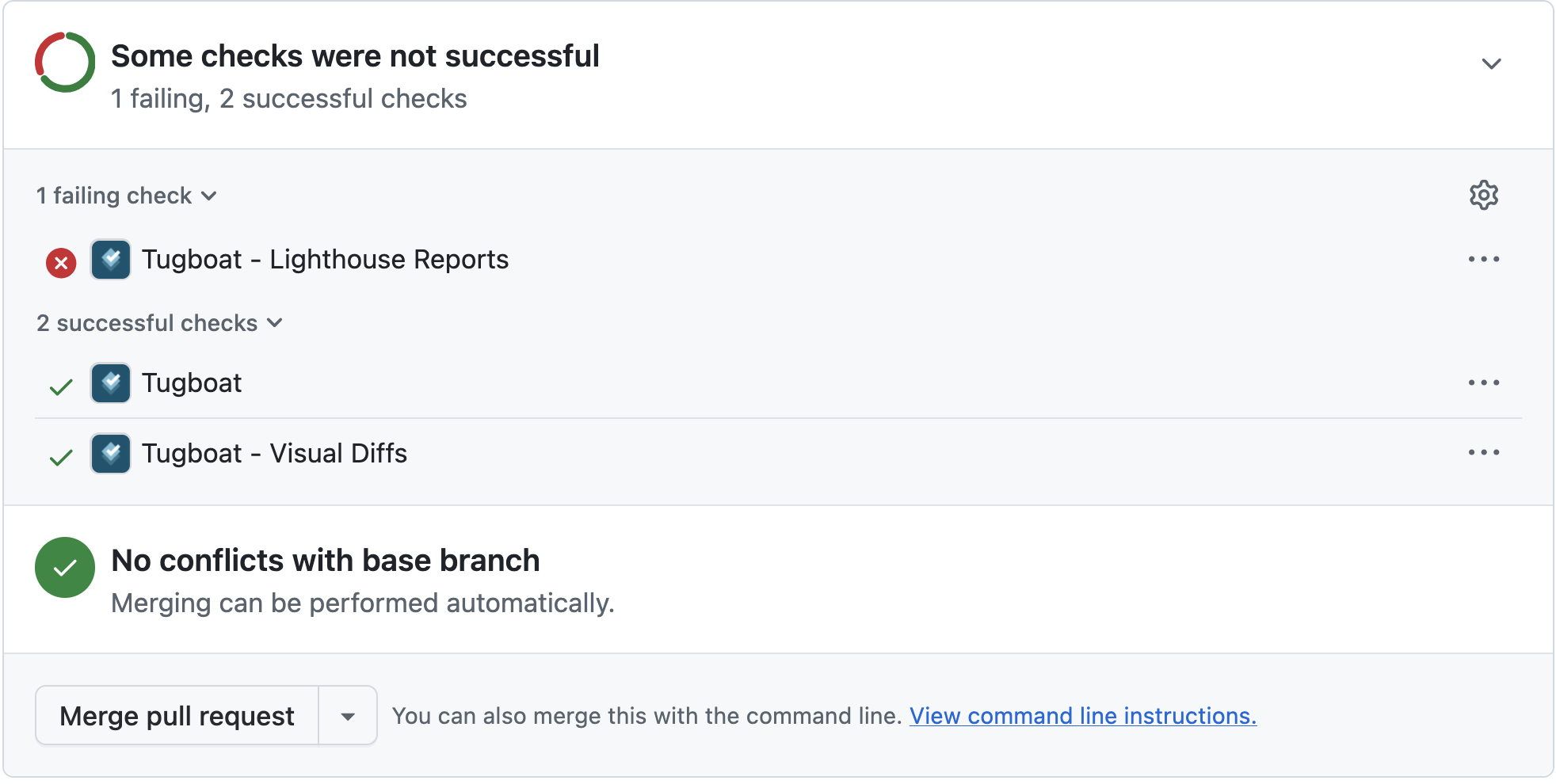
To go directly to the Lighthouse reports in the Tugboat Dashboard, click the Details link for the status. On GitHub, the Details link is in the … menu next to the status.
View pass/fail results in the Tugboat Dashboard
To view the results, view the Lighthouse reports for a Preview or a Service. When a report has thresholds, the reports for each Service show these tabs, with the number of reports in each:
- Failed: Reports that don’t meet their thresholds, and rejected reports. This tab is selected by default.
- Passed: Reports that meet their thresholds, and approved reports.
- All: All reports.
- Error: Reports that Tugboat couldn’t generate. This tab appears only when at least one report has an error.
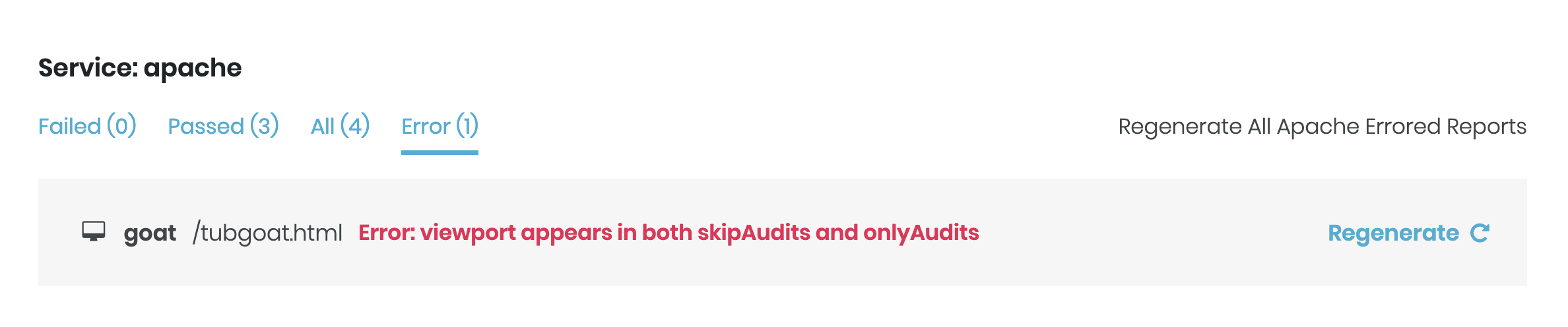
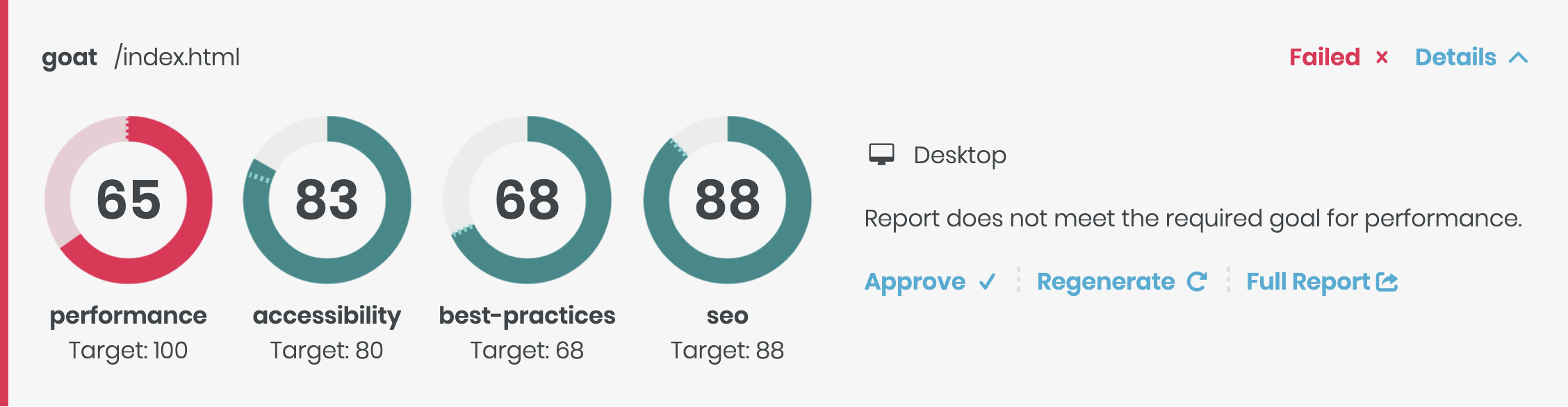
Each score graph shows a target, which is the threshold minus the tolerance. Each report also shows a status message, for example “Report meets all thresholds” or “Report does not meet the required goal for performance.”
Approve or reject Lighthouse reports
Approving or rejecting a report overrides its threshold result, in the Tugboat Dashboard and in the git provider status. The approval or rejection lasts until the report regenerates. Regenerating a report, or building, rebuilding, or refreshing the Preview, clears it.
To approve or reject a Lighthouse report:
- View the Lighthouse reports and expand the report.
- Click the Approve button on a failed or rejected report, or the Reject button on a passed or approved report.
You can also approve or reject a report with the CLI:
1tugboat update [lighthouse_id] approved=true
2tugboat update [lighthouse_id] approved=false
Regenerate reports by status
Each tab has a button that regenerates only the reports in that tab, for example Regenerate All [Service] Failed Reports or Regenerate All [Service] Passing Reports. On a Service page, use the Regenerate All button for the All tab. Tugboat asks you to confirm before it regenerates.
To regenerate by status with the CLI, pass the ID of a Service or Preview and set status to passed, failed,
errored, approved, or rejected:
1tugboat rebuild lighthouse [service_id] status=failed