Create Custom Environment Variables
Sometimes there are sensitive values or other data that you want to be made available to a Preview, but you don’t want to commit that data to git, and for security reasons, you don’t want to host it somewhere that Tugboat can grab it. These sensitive values usually include things like API keys to third-party services, or values used to configure your application that need to be unique to Tugboat but shared between your Previews.
Tugboat provides a convenient way of injecting these values into a Preview’s services via custom environment variables. To add or manage custom environment variables, go to Repository Settings.
Info
Non-sensitive Environment Variables: If you need to set service-specific environment variables that are not sensitive (such as application modes, public URLs, or feature flags), you can define them directly in your config.yml environment configuration instead. This is often more convenient for non-sensitive values since they’re defined alongside your service configuration.
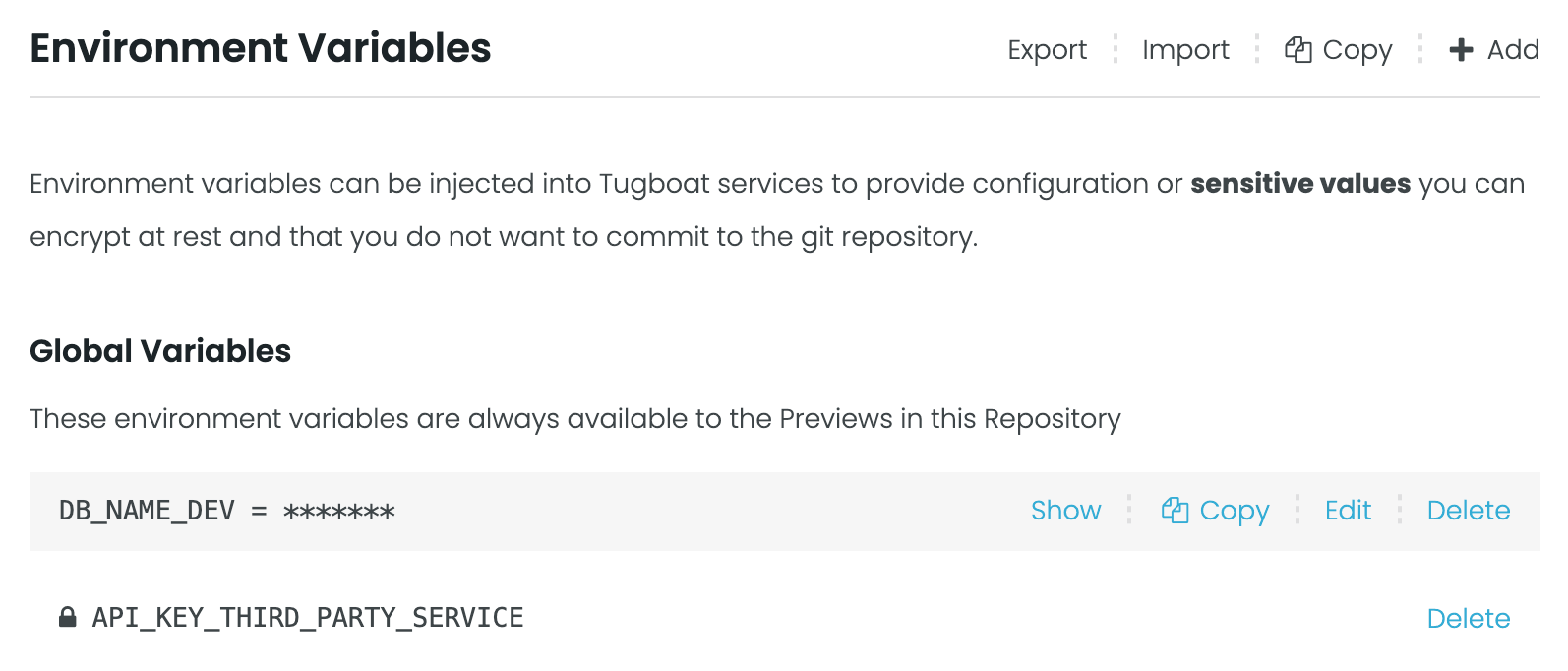
Like the other environment variables that Tugboat provides, the variables entered here are available to your Previews both while they are building as well as while they are running.
When you’re working with custom environment variables in Tugboat, you may want to:
- Encrypt a custom environment variable’s value at rest
- Limit environment variables to only be available at certain points in the build process
- Store complex data in a custom environment variable
Encrypt environment variable value at rest
When you mark an environment variable as encrypted, Tugboat encrypts its value before storing it in the database. The
plaintext value is never returned through the dashboard or public API, appears as [ENCRYPTED] in exports, and is
replaced with [REDACTED] in build logs, job logs, terminal output, and captured mail.
Warning
Encryption protects the stored value, not the container environment. Tugboat redacts the plaintext from terminal output and build and job logs, but the value remains accessible to application code and to anyone with terminal access inside the container. Note: values shorter than 5 characters are not redacted from logs or terminal output.
Encrypt a variable via the Tugboat Dashboard
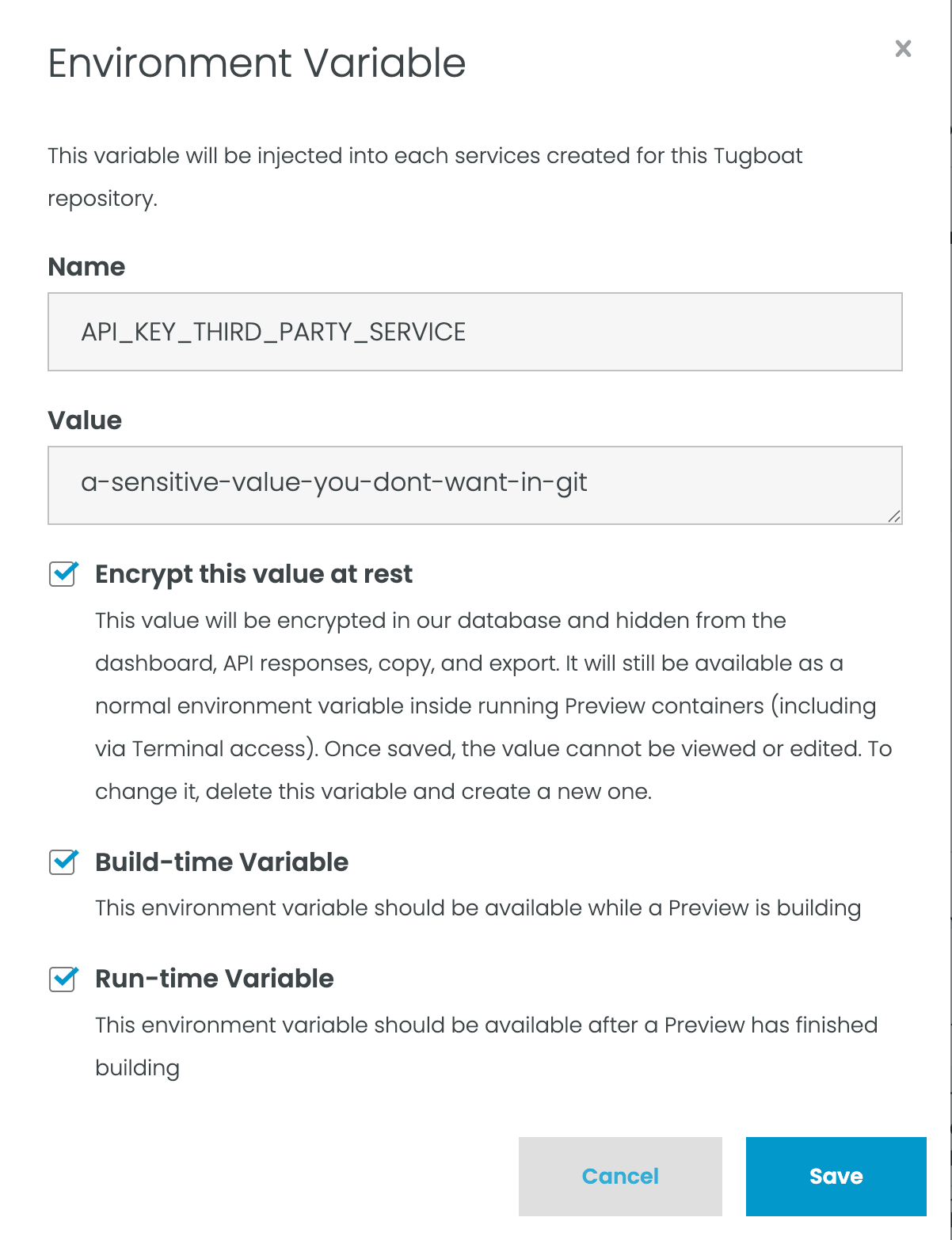
When adding a new custom environment variable, check the Encrypt this value at rest checkbox before saving.
Once saved, a “padlock” icon will display next to the environment variable name. The Show, Copy, and Edit controls are not available for encrypted variables.
Encrypted variables are immutable after creation. To change an encrypted variable’s value, name, or scope, delete it and recreate it.
How encrypted variables are displayed
| Context | Behavior |
|---|---|
| Dashboard | No value displayed. |
| Export | Appears as NAME=[ENCRYPTED] |
| Terminal output | Value appears as [REDACTED] |
| Build and job logs | Value appears as [REDACTED] |
| Captured mail | Value appears as [REDACTED] |
Define a scope for environment variable availability
For security reasons, you may want to limit the scope of environment variables containing sensitive data to only be available when they are needed. By default, Tugboat’s custom environment variables are always available, but you can define specific times in the build process for these variables to be available.
You can specify scope for environment variable availability in a few ways:
Custom variable scopes
| Type | Scope |
|---|---|
| Build-time | Available to all command groups in config.yml (all stages of a Preview’s lifecycle) |
| Run-time | Available after a Preview has finished building. |
Specify environment variable availability scope via the Tugboat Repository Settings UI
When you go to add or edit a custom environment variable from the Repository Settings screen, you’ll see checkboxes where you can specify the envvar scope.
You can specify Build-time Variable, Run-Time Variable, both, or neither.
Specify environment variable availability scope via CLI or API
If you use the Tugboat CLI, you can specify the environment variable availability using arguments on
id=repository_id. The Tugboat CLI takes envvars, buildvars, and runvars arguments for global, build time, and
runtime variables.
Global environment variable example:
1tugboat update [repository_id] envvars=foo=bar,key=valueBuild-time-scoped environment variable example:
1tugboat update [repository_id] buildvars=foo=bar,key=valueRuntime-scoped environment variable example:
1tugboat update [repository_id] runvars=foo=bar,key=valueIf you’re using the API, you can pass an environment variable array, including scope, via the Create a Repository POST or the Update a Repository PATCH endpoints.
Storing Complex Data
Environment variables are good at storing simple string values. However, what if you need to store something more complex, like an encoded JSON string, or the contents of an arbitrary file? One way of accomplishing that is to base64 encode the value, and then decode the value with a configuration file command.
1$ cat file | base64
2Q2h1Z2dhIENodWdnYSBUdWdib2F0IQo=
Store that value into an environment variable. Then, extract it to a file you can use in your Preview with something like the following:
1echo $VAR | base64 -D > /tmp/fileTroubleshooting
Variable not available
- If your Preview has commands in the
buildstage that rely on the newly-added variable, rebuild the Preview, and then variable will be available during the entire build process.